JPG vs PNG: Which Format Should You Use?
JPG vs PNG: What’s the Actual Difference?
You’ve seen both formats everywhere, but choosing between them still feels like a coin flip for most people. It shouldn’t. JPG and PNG solve different problems, and picking the wrong one costs you either file size or image quality — sometimes both.
Here’s everything you need to know to make the right call every time.
The Core Difference in One Sentence
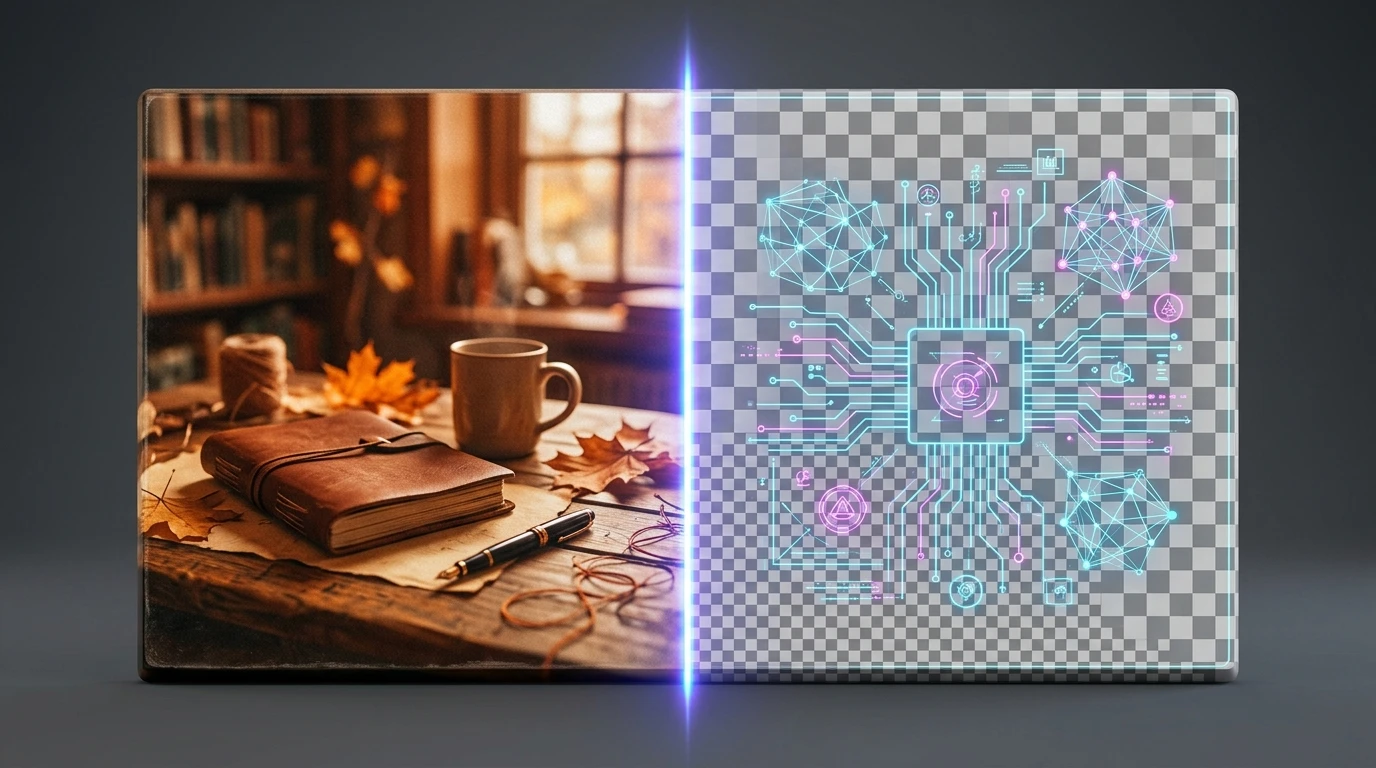
JPG compresses photos efficiently by discarding some visual data. PNG preserves every pixel perfectly but produces larger files.
That single trade-off — compression vs. quality — drives almost every practical decision between the two formats.
JPG vs PNG: Side-by-Side Comparison
| Feature | JPG | PNG |
|---|---|---|
| Compression type | Lossy (data is discarded) | Lossless (no data lost) |
| File size | Small to medium | Medium to large |
| Transparency support | ❌ No | ✅ Yes |
| Best for | Photos, complex images | Logos, icons, screenshots, text |
| Web performance | Excellent | Good (can be large) |
| Editing & re-saving | Quality degrades each save | Quality stays identical |
| Color depth | Up to 16.7 million colors | Up to 16 billion colors (16-bit) |
When to Use JPG
JPG is the right choice when:
- You’re working with photographs — travel shots, product photos, portraits
- File size matters more than absolute perfection (social media, email, web pages)
- The image doesn’t need a transparent background
- You won’t be editing and re-saving the file repeatedly
A high-resolution JPG photo can be 5–10× smaller than the same image saved as PNG. For a website loading dozens of images, that difference is enormous.
When to Use PNG
PNG is the right choice when:
- Your image has a transparent or semi-transparent background (logos placed over colored backgrounds, UI elements, stickers)
- You’re saving screenshots, diagrams, or images with sharp text — JPG compression creates ugly blurry artifacts around hard edges
- You need to edit and re-save the file multiple times without any quality loss
- You’re working with icons, illustrations, or graphics that have flat colors and clean lines
Every time you save a JPG, the compression algorithm runs again and the image gets slightly worse. With PNG, the 50th save looks identical to the first.
The Transparency Question
This is the most decisive factor for many users. JPG cannot store transparent pixels — period. If you try to remove a background and save as JPG, the transparent areas will become white (or whatever background color the application fills in).
PNG handles transparency natively, which is why every logo file you download from a brand kit is almost always a PNG.
What About File Size in Practice?
Here’s a real-world example to put numbers in perspective:
- A 12MP smartphone photo saved as JPG at 80% quality: ~2.5 MB
- The same photo saved as PNG: ~12–18 MB
For photos, PNG’s larger size buys you almost nothing visible. But for a logo with 50 colors and crisp edges, PNG keeps lines sharp while JPG would introduce noticeable artifacts.
How to Convert Between JPG and PNG
Already have a file in the wrong format? Converting is straightforward:
- Go to Convert JPG to PNG or Convert PNG to JPG depending on what you need.
- Upload your file — drag and drop or click to browse.
- Click Convert .
- Download your converted file instantly.
No account required, no software to install, and files are processed securely.
Important: Converting a JPG to PNG will not recover any quality that was already lost during JPG compression. PNG will preserve whatever quality exists, but it can’t add back data that was discarded. Always keep originals.
Quick Decision Guide
- Sharing a vacation photo? → JPG
- Uploading a logo? → PNG
- Screenshot with text? → PNG
- Product photo for an online store? → JPG
- Icon for a mobile app? → PNG
- Background image for a website? → JPG
Once you internalize that single trade-off — lossy compression vs. lossless quality — the right choice becomes obvious in about three seconds.