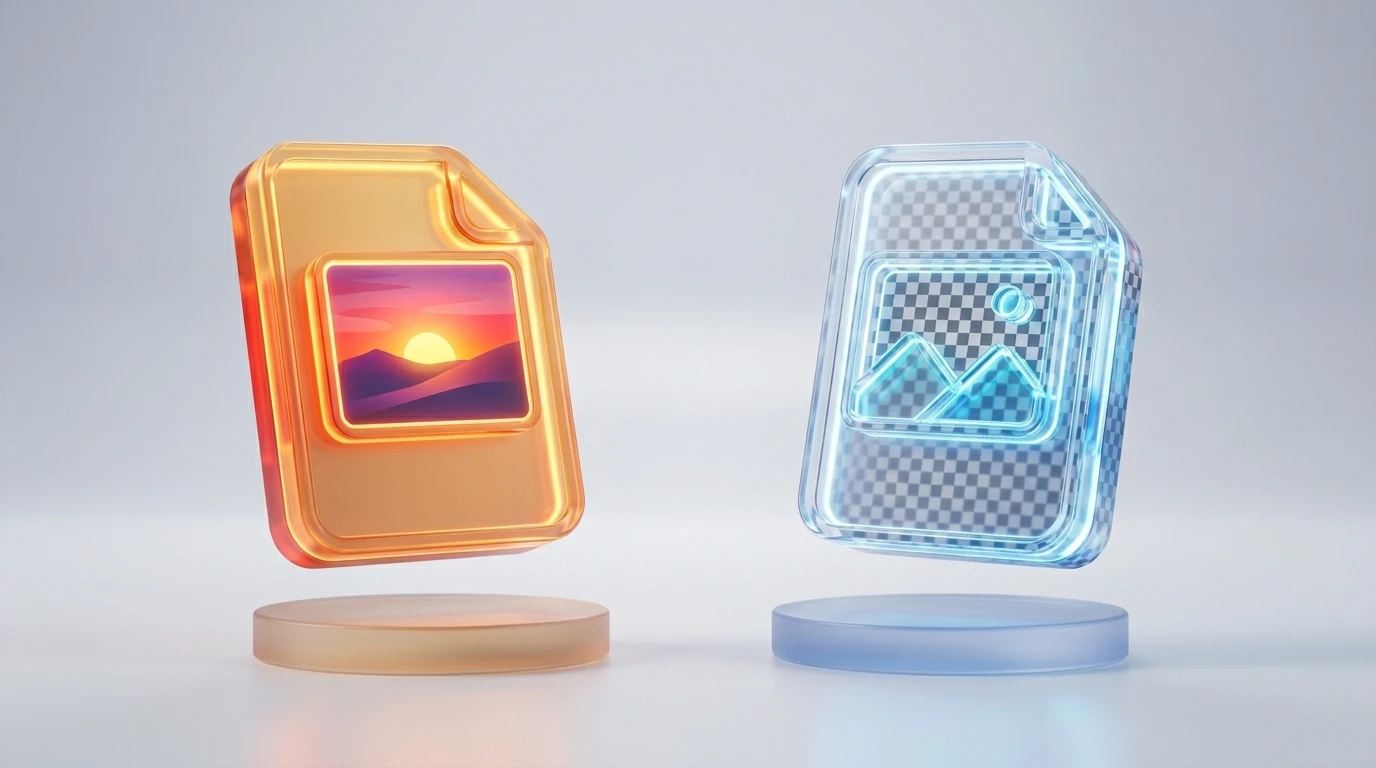
JPG vs PNG: Which Format Should You Use and How to Convert Between Them
JPG vs PNG: What’s the Actual Difference?
If you’ve ever saved an image and wondered whether to pick JPG or PNG, you’re not alone. Both are everywhere, both are supported by every browser and device, and both store photos and graphics — but they work very differently under the hood.
Here’s the short version:
- JPG (also written JPEG) compresses images by permanently discarding some visual data. The result is a smaller file, but quality degrades a little each time you save.
- PNG compresses images without losing any data. Files are larger, but the image stays pixel-perfect no matter how many times you save it.
That single difference — lossy vs lossless compression — drives almost every practical decision you’ll make about these two formats.
Side-by-Side Comparison
| Feature | JPG | PNG |
|---|---|---|
| Compression type | Lossy | Lossless |
| File size | Smaller | Larger |
| Transparency support | No | Yes (alpha channel) |
| Best for | Photos, complex images | Logos, screenshots, graphics |
| Re-saving quality loss | Yes | No |
| Browser support | Universal | Universal |
| Color depth | Up to 24-bit | Up to 48-bit |
When to Use JPG
JPG is the right choice when file size matters more than pixel-perfect accuracy. The most common use cases:
- Photography — Natural scenes have so much visual complexity that slight compression artifacts are invisible to the human eye.
- Web images where speed matters — A 200 KB JPG loads faster than a 700 KB PNG on mobile connections.
- Email attachments — Sending a photo to someone who just wants to see it, not edit it.
When to Use PNG
PNG wins whenever visual precision or transparency is on the table:
- Logos and brand assets — You need crisp edges and often a transparent background so the logo works on any color.
- Screenshots — Text in screenshots looks blurry in JPG. PNG keeps every pixel sharp.
- Graphics with flat colors — Illustrations, charts, and UI elements compress very efficiently as PNG without losing any detail.
- Images you’ll edit repeatedly — No generation loss means you can save as many times as you need.
How to Convert JPG to PNG Online (Free)
No software installation needed. Here’s how to do it with Convertidor.mx’s JPG to PNG converter:
- Open the tool — Navigate to the JPG to PNG converter.
- Upload your file — Click the upload zone or drag your JPG directly onto the page. You can also upload multiple files at once.
- Convert — Hit the Convert button. The process takes just a few seconds.
- Download — Click Download to save your new PNG file. No account required, no watermarks.
The converter handles standard JPGs, but also works if you have a JFIF file (another common variant of the JPEG format). If you have one of those, you can first use the JFIF to JPG converter to normalize the file before converting further.
What About WebP?
WebP is a newer format from Google that’s increasingly common on the web. If you’ve downloaded an image that turned out to be a WebP file and need a more universally compatible PNG, the WebP to PNG converter handles that in the same straightforward way — upload, convert, download.
Quick Decision Guide
Use JPG if:
- The image is a photograph
- You need the smallest possible file size
- Transparency is not needed
Use PNG if:
- The image has text, sharp edges, or flat colors
- You need a transparent background
- You’ll be editing and re-saving the file multiple times
Bottom Line
JPG and PNG each have a clear job. Photos belong in JPG. Logos, screenshots, and anything that needs a transparent background belong in PNG. When you need to switch between them — whether for a design project, a website, or just to meet an upload requirement — converting is fast and free without installing anything on your device.