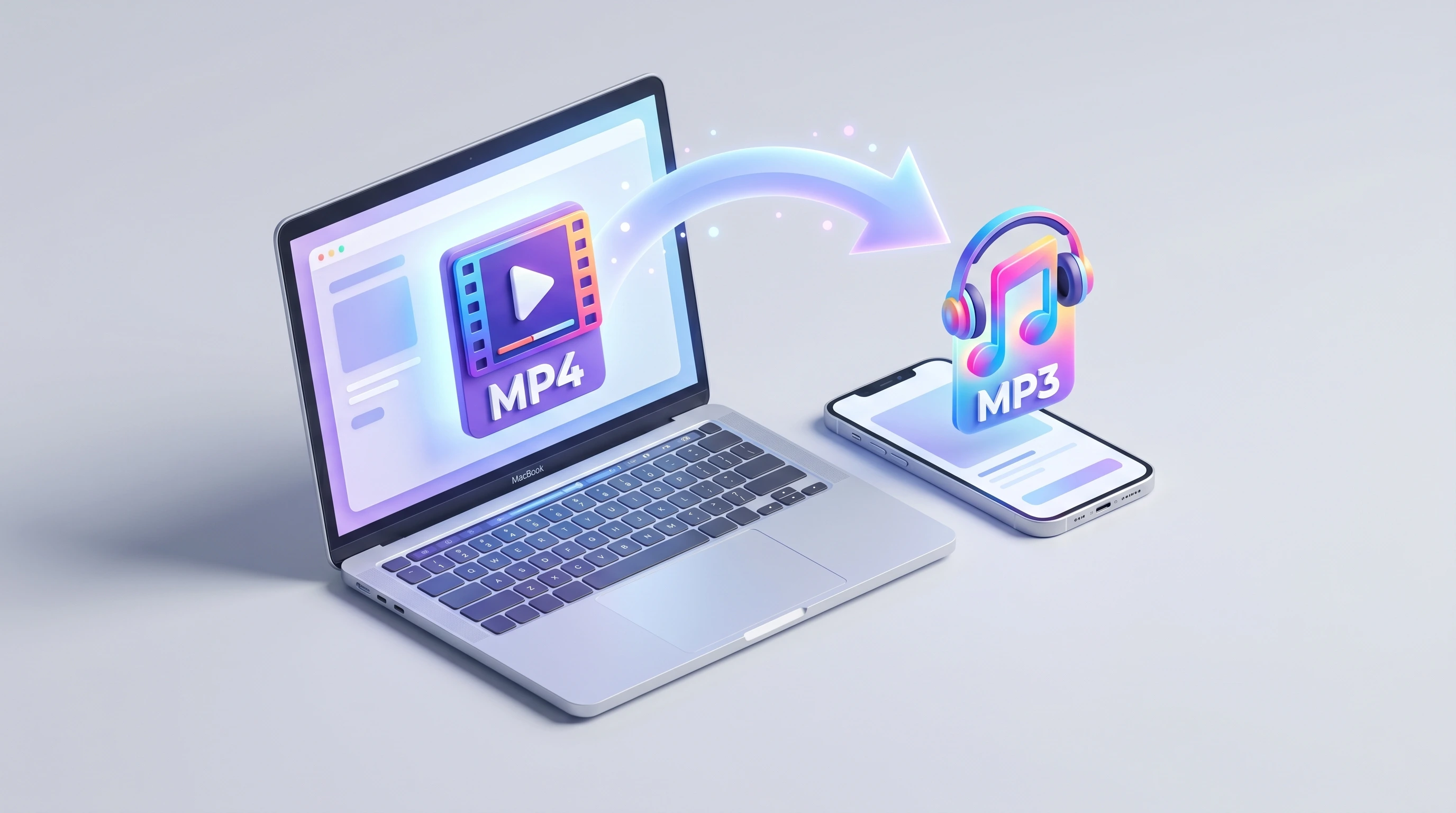
How to Extract Audio from Videos (Free & Fast)
Why Extract Audio from a Video?
There are more reasons than you might think. Maybe you recorded a lecture or interview on video and only need the audio. Maybe you want to rip the soundtrack from a music video to listen offline. Or perhaps you need a voiceover clip from a recorded call.
Whatever the case, you don’t need to install any software to get it done. A good online converter handles the job in seconds, right from your browser.
What Formats Can You Extract Audio From?
Most video files carry an audio track embedded inside them. The extraction process simply pulls that track out and saves it as a standalone audio file — usually MP3, since it’s the most universally compatible format.
Here’s a quick look at the most common video formats and how well they work for audio extraction:
| Video Format | Common Use Case | Audio Extraction |
|---|---|---|
| MP4 | Downloaded videos, screen recordings | Excellent |
| WebM | Browser-recorded video, YouTube | Excellent |
| MOV | iPhone/Mac recordings | Good |
| AVI | Older video files | Good |
| MKV | Movies, TV shows | Good |
How to Extract Audio from a Video: Step by Step
The process takes under a minute. Here’s exactly what to do:
-
Identify your video format. Look at the file extension — is it
.mp4,.webm,.mov, or something else? -
Go to the right converter. For MP4 files, use the MP4 to MP3 converter. For WebM files, use the WebM to MP3 converter. For any other video format, the general video to MP3 converter has you covered.
-
Upload your file. Click the upload area or drag and drop your video directly onto the page.
-
Start the conversion. Hit the Convert button. The tool will process your file — this usually takes just a few seconds for files under 100MB.
-
Download your MP3. Once done, a download button will appear. Click it to save the audio file to your device.
That’s it. No account needed. No watermark. No hidden steps.
Will the Audio Quality Be Good?
Yes — with one important caveat. The extracted audio will only be as good as the audio that was in the original video. If the video was recorded with a poor microphone or had background noise, that will carry over to the MP3.
The extraction process itself doesn’t degrade quality. It’s essentially taking what was already there and saving it in a new container.
Common Problems (and Quick Fixes)
The file is too large to upload. Try trimming the video first using a free video editor, then convert just the portion you need.
The audio sounds out of sync. This is rare, but it can happen with certain MKV or AVI files. Try using a different browser, or re-export the original video as MP4 before converting.
No audio in the output file. Some video files are recorded without sound (screen recordings with audio muted, for example). Check that your original video actually has an audio track before converting.
Which Tool Should You Use?
If you’re not sure which converter to pick, here’s a simple guide:
- Your file is
.mp4→ Convert MP4 to MP3 - Your file is
.webm→ Convert WebM to MP3 - Any other format → Video to MP3 Converter
All three tools are free, browser-based, and require no sign-up. Pick the one that matches your file and you’ll have your audio in under a minute.