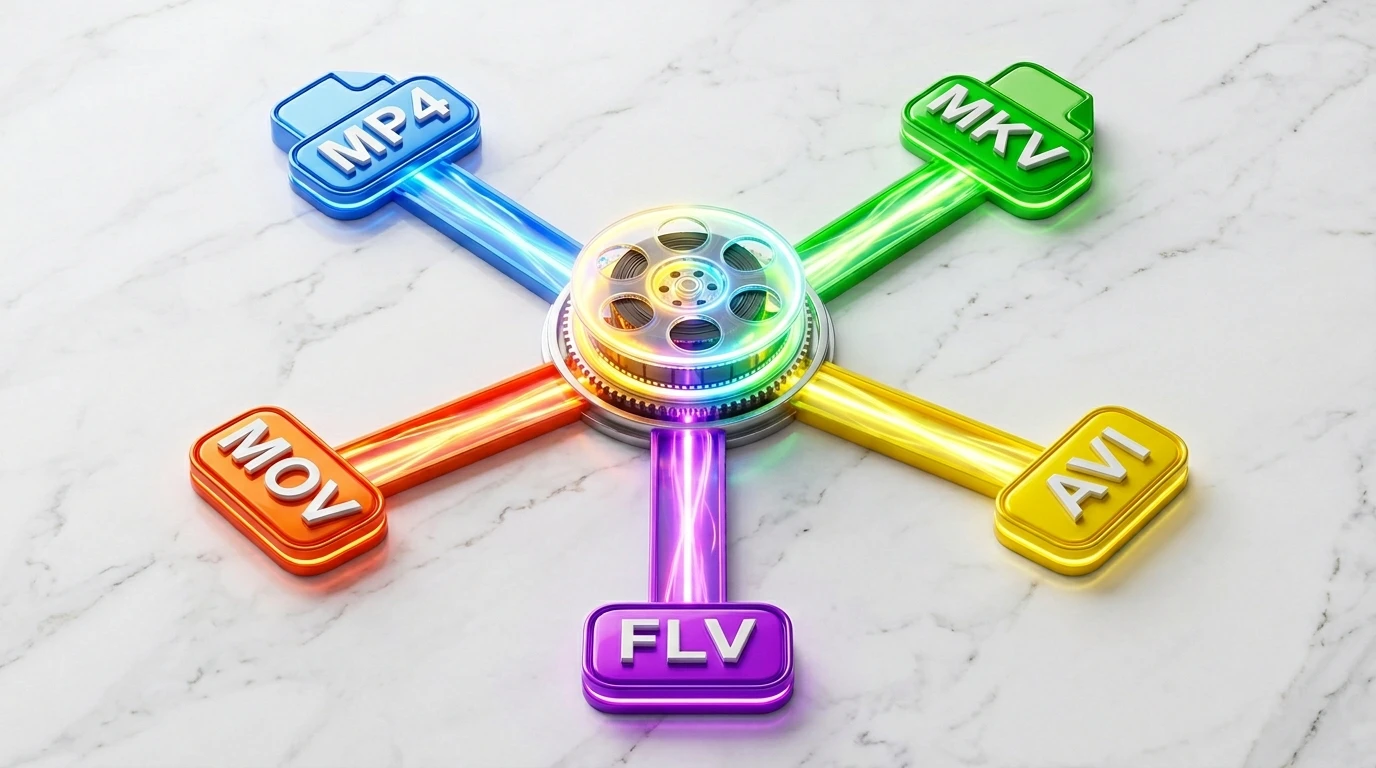
How to Convert Videos to Different Formats (Quick & Free)
Why Video Format Conversion Matters
You’ve downloaded a movie, received a clip from a friend, or exported footage from your camera — and now your player, phone, or editor refuses to open it. The problem is almost always the video format .
Different devices and platforms support different formats. A .mkv file plays fine on VLC but won’t upload to WhatsApp. A .mov from your iPhone looks great on Mac but stutters on a Windows PC. Understanding which format to use — and how to convert quickly — saves you a lot of frustration.
Most Common Video Formats Explained
| Format | Full Name | Best For | Compatibility |
|---|---|---|---|
| MP4 | MPEG-4 Part 14 | Universal use, web, mobile | Excellent — works almost everywhere |
| MKV | Matroska Video | HD movies, multiple audio tracks | Good on PC/Mac, limited on mobile |
| MOV | QuickTime Movie | Apple devices, video editing | Great on macOS/iOS, limited on Windows |
| FLV | Flash Video | Older web video (YouTube archives) | Poor — Flash is deprecated |
| AVI | Audio Video Interleave | Legacy Windows video | Moderate — large file sizes |
| WebM | WebM | Web streaming | Good in browsers, limited elsewhere |
MP4 is the go-to format for most people. It offers excellent quality at small file sizes and plays on virtually every device, browser, and platform without issues.
When Should You Convert a Video?
You should convert your video when:
- Your media player or TV won’t play the file
- You want to upload to social media (Instagram, TikTok, and YouTube all prefer MP4)
- You’re editing video and your software doesn’t support the original format
- The file is too large and you need a more compressed format
- You received a file in an outdated format like FLV or AVI
Step-by-Step: How to Convert a Video Online
No software installation needed. Here’s how to do it with any of the free tools on Convertidor.mx:
- Go to the right converter for your source format (see links below).
- Click “Upload” and select your video from your computer, phone, or tablet.
- Wait for the upload to complete — larger files take a bit longer on slower connections.
- Click “Convert” to start the process. The conversion happens on our servers, so your device doesn’t need to do any heavy lifting.
- Click “Download” once the conversion is done. Your file will be saved in the new format.
Tools for the Most Common Conversions
MKV to MP4
MKV files are popular for high-definition movies and TV shows because they support multiple audio and subtitle tracks. The downside? Many devices — especially smart TVs, phones, and streaming apps — don’t support MKV natively.
Converting to MP4 solves this instantly. Use our MKV to MP4 converter to get it done in seconds.
MOV to MP4
MOV is Apple’s native video format, created by QuickTime. If you’re on a Mac or iPhone, you probably deal with .mov files regularly. The problem is they’re not always compatible with Windows software or Android devices.
Our MOV to MP4 converter lets you quickly switch to a universally compatible format without losing quality.
FLV to MP4
FLV (Flash Video) was everywhere in the early days of the internet — YouTube originally used it. Now that Adobe Flash is dead, FLV files are essentially unusable on modern browsers and devices.
If you have old FLV clips you want to preserve or share, convert them with our FLV to MP4 converter to give them a second life.
Does Converting Reduce Video Quality?
This depends on the conversion settings. When you convert from one format to another without re-encoding (sometimes called a “remux”), quality is preserved perfectly. When re-encoding is involved, some minor quality loss can occur — but for most everyday use, it’s imperceptible.
Final Thoughts
Converting videos doesn’t have to be complicated or expensive. Whether you’re dealing with an MKV you can’t play, a MOV from your iPhone, or a dusty FLV from 2009, the right online converter gets the job done in under a minute — no downloads, no sign-ups, no cost.
Pick your format above and convert your first file now.